Contents
the email tool that makes email marketing simple


Customize Your Email Footer
Published: · Last updated: · By Marcus Biel
In brief
Learn how to customize Maildroppa's global email footer, adjust colors, fonts and sizes, fix contrast warnings, preview changes, and restore defaults.
The Footer Style page lets you control the appearance of the standard footer Maildroppa adds to your emails.
You can choose the background color and configure separate text styles for your company name, postal address, and footer links. A live preview shows how these settings work together before you save them.
The footer content itself comes from other account settings. The Footer Style page changes its appearance, but it does not change your company name, address, subscriber language, or the actions behind the profile and unsubscribe links.
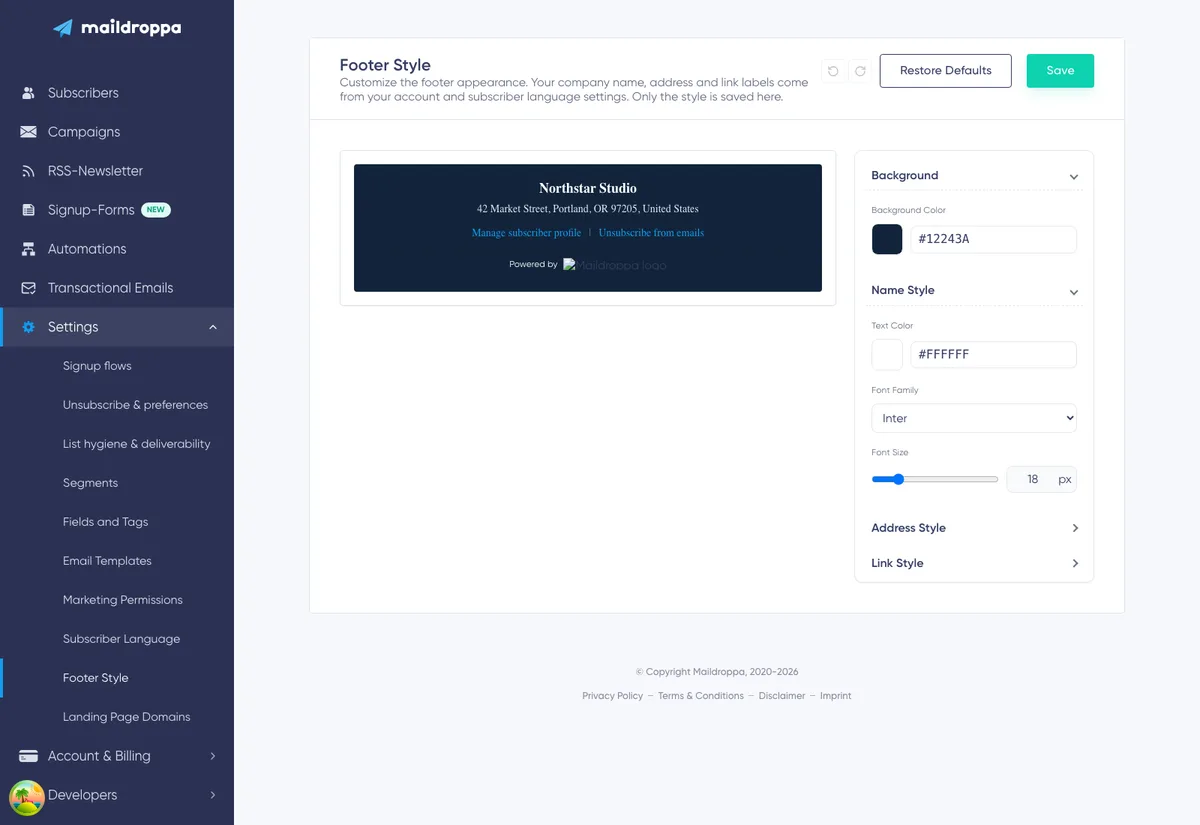
Why Maildroppa Adds an Email Footer
The standard email footer identifies the sender and gives subscribers access to important subscription actions.
Depending on the email type and your plan, it can contain:
- Your legal name or company name
- Your postal address
- A “Manage Subscriber Profile” link
- An “Unsubscribe from emails” link
- Maildroppa branding on the free plan
Maildroppa generates the footer centrally. This keeps required sender information and subscriber actions consistent even when you use different email templates.
The profile and unsubscribe URLs in a sent email are not normal website links. Maildroppa creates the correct subscriber-specific destinations when it prepares the message. The Footer Style page lets you style these links, but it does not let you replace their destinations.
Where the Footer Style Is Used
The saved footer style is used when Maildroppa renders supported outgoing emails, including:
- Email campaigns and campaign test emails
- Automation emails and Email Messages
- Re-engagement emails used by List Hygiene & Deliverability
- Signup confirmation emails used for Double Opt-in
The exact footer content depends on the message type. For example, a Double Opt-in confirmation email uses the footer background, company name, address, and applicable plan branding, but it does not show profile and unsubscribe links before the recipient has confirmed the subscription.
Campaigns, Re-engagement emails, and other messages sent to existing subscribers can include the profile and unsubscribe links.
The Footer Style page does not control:
- The legal footer on published Landing Pages
- The appearance of embedded forms, popups, or slide-ins
- Footer content that you manually create as a normal text block
- Your sender name or sender email address
- The main design of an email template
For Double Opt-in settings, see Signup Flows. For Re-engagement mail settings, see List Hygiene & Deliverability.
Where the Footer Content Comes From
The preview combines information from three different sources. Understanding these sources prevents you from looking for content fields on the Footer Style page.
Company Name and Postal Address
The company name and address come from your account's public provider and sending details.
Open “Settings” → “Provider details” when the displayed name or address is incorrect. Update the legal name or company and the postal address there.
Maildroppa requires a completed postal address before the Footer Style page becomes available. If “Footer Style” is missing from the Setup menu or the page redirects you to the dashboard, complete the postal-address step in your account setup first.
Changing the name or address is separate from saving the footer style. After updating provider details, reopen the Footer Style page to load the current information into the preview.
Profile and Unsubscribe Link Texts
The two footer link labels come from “Settings” → “Subscriber Language”.
The selected Subscriber Language controls subscriber-facing screens and footer link texts. It is independent from the language you use for the Maildroppa application interface.
For example, an English subscriber language displays labels such as “Manage Subscriber Profile” and “Unsubscribe from emails”. Selecting German changes them to the corresponding German labels.
If no translation exists for a selected locale, Maildroppa uses English as the fallback. Return to the Footer Style page after changing the Subscriber Language to refresh the preview.
The labels are managed centrally and cannot be rewritten in the Footer Style editor. This protects the meaning of the profile and unsubscribe actions.
Maildroppa Branding
Accounts on the free plan show a “Powered by” line and a Maildroppa logo in the footer.
The preview includes this branding when it applies to your current plan. Maildroppa automatically uses a light logo on a dark footer background and a dark logo on a light background.
The branding is not a separately editable style section. Its visibility is determined by the account plan, and its logo variant is determined by the selected background color.
Opening Footer Style
Open “Settings” and select “Footer Style” under Setup.
Maildroppa loads the current footer content and saved style. The page contains:
- A live footer preview
- A collapsible style editor
- Undo and Redo controls
- “Restore Defaults”
- “Save”
- A validation warning when the style cannot be saved
On a wide screen, the preview appears beside the style editor. On a narrower screen, the editor moves below the preview and the page actions expand to the available width.
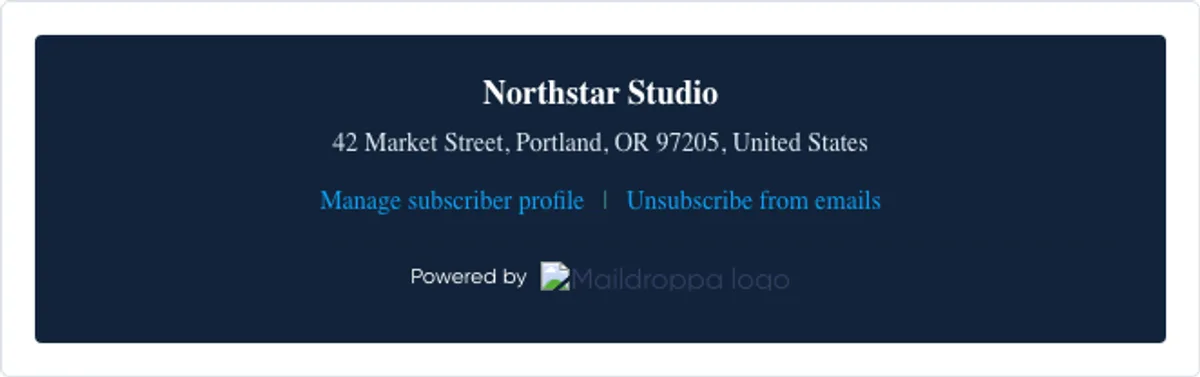
Understanding the Live Preview
The preview updates as soon as you change a color, font, or size. You do not need to save after every adjustment.
It shows the current:
- Background
- Company name
- Postal address
- Profile and unsubscribe link labels
- Free-plan branding, when applicable
The preview links open dedicated preview destinations in a new tab. They are not a subscriber's real profile or unsubscribe links. Maildroppa creates individual working URLs when an actual email is prepared for a recipient.
The preview is a reliable representation of the selected style, but email clients can render fonts and spacing differently. Always send a test email and check it in the email clients that matter to your audience before using a major design change in a campaign.
Using the Style Editor
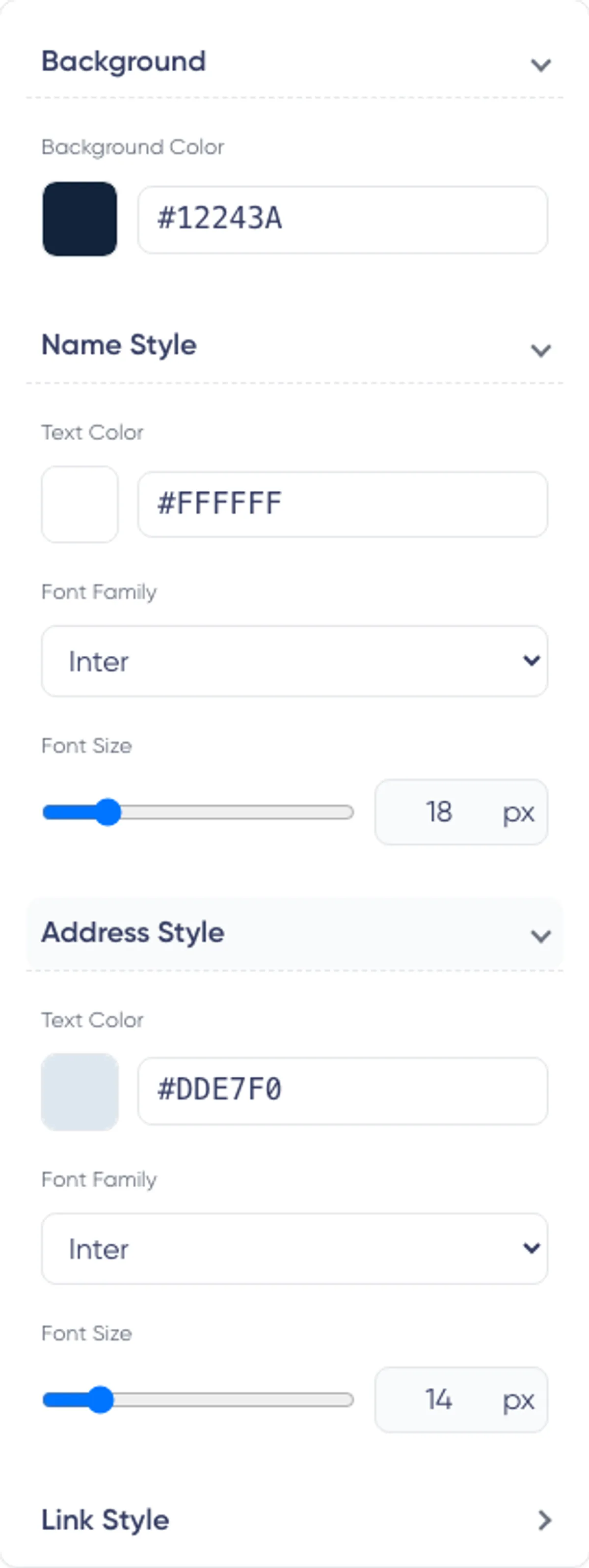
The right-hand editor is divided into four sections:
- Background
- Name Style
- Address Style
- Link Style
“Background” and “Name Style” are open when the page loads. Click any section heading to open or close it. Collapsing a section does not discard its values.
Each text section provides controls for text color, font family, and font size. Background provides a background-color control.
Setting the Background Color
Open “Background” and use “Background Color”.
You can select a color in two ways:
- Click the color swatch and choose a color visually.
- Enter an exact six-digit hexadecimal value in the text field.
A valid value uses this format:
#RRGGBB
Examples include:
#FFFFFFfor white#111111for a very dark gray#0F4C5Cfor a dark blue-green#F4F7FAfor a light neutral background
Three-digit shorthand such as #FFF, color names such as white, and RGB functions are not accepted. The value must contain # followed by exactly six hexadecimal characters.
The background affects the complete generated footer. When free-plan branding is shown, Maildroppa also evaluates the background and automatically selects the readable black or white logo variant.
Styling the Company Name
Open “Name Style” to control the legal or company name displayed at the top of the footer.
You can change:
- Text Color
- Font Family
- Font Size from 11px to 50px
The company name is displayed with stronger emphasis than the address. Choose a size that establishes a clear hierarchy without making the footer compete with the email content.
A value between 14px and 18px is usually sufficient for a standard footer. Larger sizes can work for a strong brand presentation, but review the result on mobile and in a test email.
The text itself is not editable here. Change it under “Provider details”.
Styling the Postal Address
Open “Address Style” to control the appearance of the account's postal address.
You can change:
- Text Color
- Font Family
- Font Size from 11px to 30px
The address should remain easy to read even when it is visually quieter than the company name. Avoid extremely low contrast or an unnecessarily small size.
The complete address can be longer than the sample visible in a compact preview. Check the footer at narrow widths to make sure it still reads clearly when it wraps onto several lines.
Change the address itself under “Provider details”, not in this editor.
Styling the Footer Links
Open “Link Style” to configure the profile and unsubscribe links together.
You can change:
- Text Color
- Font Family
- Font Size from 11px to 30px
Both links use the same style. They cannot be styled independently on this page.
Maildroppa keeps the links underlined in generated email footers. Choose a color that is clearly visible against the background and still looks like an interactive action.
The separator between the two links follows the link color with reduced visual emphasis.
Do not try to hide the unsubscribe action by matching its color to the background or reducing its readability. Maildroppa's contrast validation prevents styles that fall below the required threshold.
Choosing a Font Family
The same font list is available for Name Style, Address Style, and Link Style:
- Arial
- Inter
- Georgia
- Times New Roman
- Verdana
- Helvetica
- Roboto
- Open Sans
- Lato
- Merriweather
- Playfair Display
- Lora
Each section can use a different font. For example, you could use Georgia for the company name and Arial for the address and links.
However, not every email client or recipient device has every font installed. When a selected font is unavailable, the email client uses a fallback. Arial, Georgia, Times New Roman, Verdana, and Helvetica are generally safer choices when consistent rendering is more important than a distinctive typeface.
Use no more font families than necessary. A footer is usually clearest when all three text sections use the same family or when only the company name uses a contrasting font.
Changing Font Size
Every text-style section provides both a slider and a numeric field.
Drag the slider for quick visual adjustment, or enter an exact whole-pixel value. The controls keep values within the allowed range:
- Company name: 11px–50px
- Postal address: 11px–30px
- Footer links: 11px–30px
The size applies to the generated email footer, not only to the preview.
Review long company names, long addresses, and translated link labels after changing sizes. Text that fits on one line in English may wrap in another Subscriber Language.
Understanding Style Validation
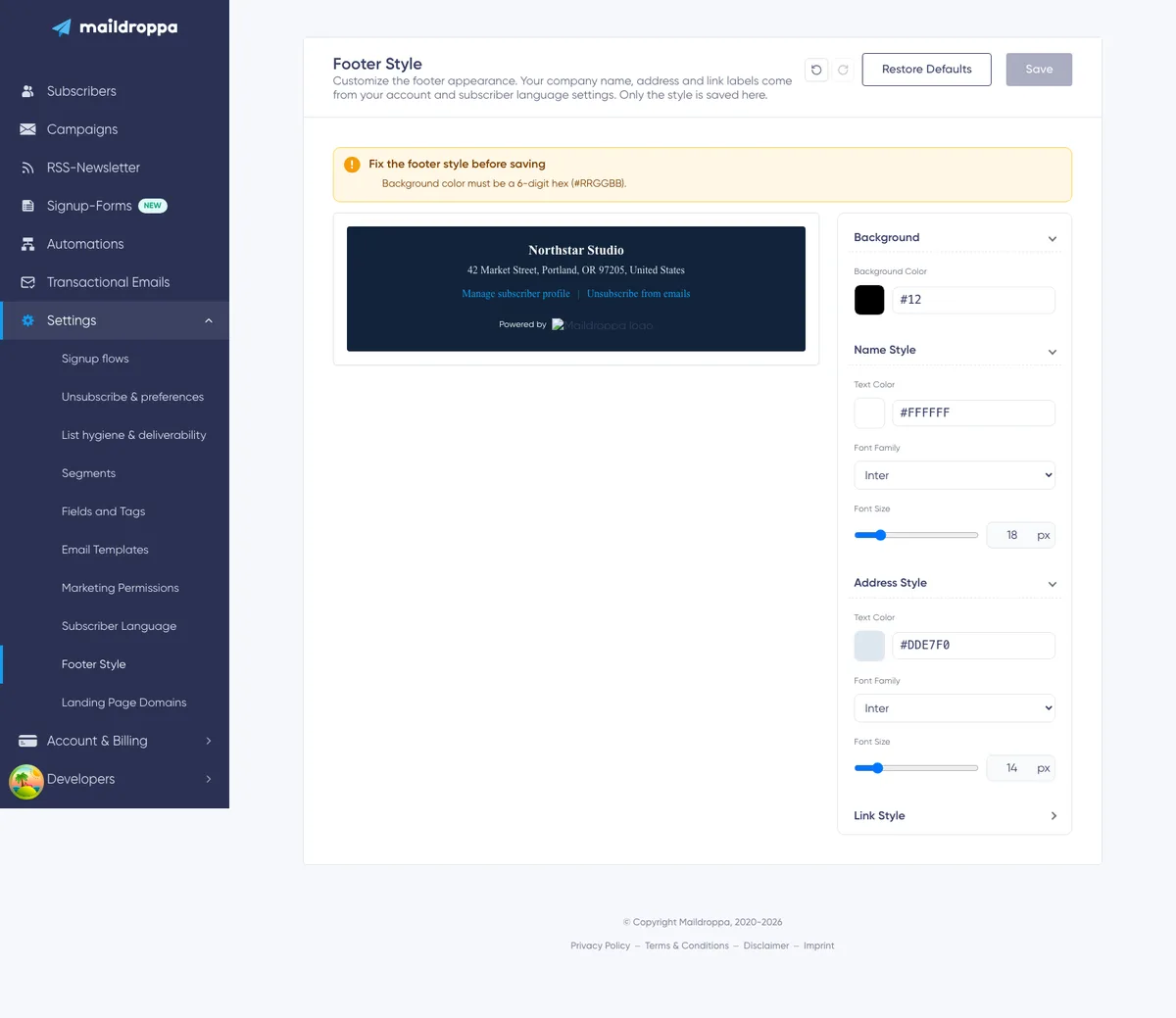
Maildroppa validates the complete style while you edit it. If a value is invalid, a banner titled “Fix the footer style before saving” appears above the editor and the “Save” button is disabled.
The warning lists every issue that currently prevents saving.
Invalid Color Format
Every background and text color must be a complete six-digit hexadecimal value.
For example, #FFFFFF is valid, while #FFF, FFFFFF, white, and rgb(255,255,255) are invalid.
When you type a color manually, leave the field or press Enter to apply it. Correct the value shown in the warning before saving.
Low Contrast
Maildroppa compares each text color with the footer background.
The current requirements are:
- At least 3.8:1 for text smaller than 24px
- At least 3:1 for text from 24px upward
The warning shows the measured ratio and the required ratio for the affected company name, address, or links.
To fix low contrast:
- Make dark text darker on a light background.
- Make light text lighter on a dark background.
- Change the background color.
- Increase the company-name size to 24px or more only when that size also fits the design. Do not enlarge text solely to avoid choosing readable colors.
A style that passes the built-in check is not a guarantee that every recipient will find it accessible. Prefer strong, obvious contrast and verify the footer in a real test email.
Invalid Font Size
The company name must be between 11px and 50px. The address and links must be between 11px and 30px.
Sizes must be whole numbers. Use the slider or numeric control to bring the value back into range.
Using Undo and Redo
Use the curved-arrow buttons in the page header to move backward or forward through recent style changes.
Undo and Redo cover changes to:
- Background color
- Text colors
- Font families
- Font sizes
Undo becomes available after the first change. Redo becomes available after you undo something. Making a new change after using Undo clears the forward Redo history.
The history exists only in the current editing session. Saving, restoring defaults, refreshing the page, or opening the page again starts a new history from the newly loaded style.
Undo and Redo do not change the saved footer until you click “Save”.
Restoring the Default Style
Click “Restore Defaults” to load Maildroppa's standard style into the editor:
- White background:
#FFFFFF - Company name: black Arial, 14px
- Address: dark gray Arial, 14px
- Links: blue Arial, 12px
Restoring defaults changes the editor and preview immediately, but it does not save the defaults automatically. Review the result and click “Save” when you want to make it the active footer style.
“Restore Defaults” also starts a new local editing history. You cannot use Undo to return to the style that was shown before the reset. If you clicked it accidentally and have not saved, refresh the page to reload the previously saved style.
When the saved values exactly match the defaults, Maildroppa removes the custom style and uses the central default style for the account.

Saving the Footer Style
When the preview looks correct and no validation warning remains, click “Save”.
Maildroppa saves one global footer style for the account. The returned saved values become the new starting point for the editor, and the local Undo and Redo history is cleared.
Only these style settings are saved from this page:
- Background color
- Company-name color, font, and size
- Address color, font, and size
- Link color, font, and size
- The automatically selected light or dark Maildroppa logo variant
Your company name, address, Subscriber Language, and plan are not changed by this Save action.
If a validation warning is visible, the Save button remains disabled. Resolve all listed problems first.
Leaving or refreshing the page before saving discards unsaved style changes. There is no separate draft for the Footer Style page.
How Saved Changes Affect Existing Emails
Maildroppa stores the footer separately from the main email content and generates it when an email is previewed or prepared.
This means that saving the footer style:
- Does not rewrite the content blocks in every stored email template.
- Does not change emails that have already been delivered.
- Is used for future footer previews and supported outgoing emails.
- Can affect existing campaign, automation, and Signup Flow email designs the next time their footer is rendered.
An email editor that was already open can still show an older preview. Reopen or refresh the editor after saving the global footer style when you want to review the updated footer there.
Before sending an important campaign, open its preview or send a test email and check that the new global footer works with the email body's width, background, and overall design.
Design Recommendations
Keep the Footer Visually Separate
Use a background that clearly separates the footer from the main email without overpowering it. A light neutral or dark brand color often works well.
Preserve a Clear Hierarchy
Make the company name slightly stronger than the address. Keep profile and unsubscribe actions easy to locate.
Prefer Reliable Contrast
Do not aim for the minimum possible ratio. Email clients, display brightness, and visual impairments can make subtle text harder to read.
Use Email-Safe Typography
Distinctive fonts may fall back on some devices. Use a common font when consistency is important, and test any less common font in several email clients.
Account for Long Translations
Footer link labels vary by Subscriber Language. Leave enough room for longer words and phrases, especially on mobile.
Test Both Light and Dark Contexts
The footer has its own background, but it still follows the main email visually. Check that the transition from the final content section into the footer feels intentional.
Do Not Use the Footer as Campaign Content
Keep promotions, calls to action, and campaign-specific copy in the email body. The generated footer should remain a stable place for sender information and subscription actions.
Troubleshooting Footer Style Problems
Footer Style Is Missing from the Menu
Complete the postal-address step in your account setup. The Footer Style page is available only after Maildroppa has the provider and sending details needed for the footer.
The Company Name or Address Is Wrong
Open “Settings” → “Provider details” and update the legal name or company and postal address. Then reopen Footer Style to load the current content.
The Link Text Is in the Wrong Language
Open “Settings” → “Subscriber Language”, select the correct language, save it, and reopen Footer Style.
The application-interface language does not control these subscriber-facing labels.
Save Is Disabled
Read every message in the warning banner. Check for:
- A color that is not written as
#RRGGBB - Company-name text below 11px or above 50px
- Address or link text below 11px or above 30px
- Insufficient contrast between a text color and the background
- Another save or restore operation that is still running
The Preview Shows Different Branding
Maildroppa branding is shown for the free plan. Its black or white logo variant changes automatically with the footer background.
The branding is based on the current account plan and cannot be hidden with the Footer Style controls.
A Font Looks Different in the Received Email
The recipient's email client may not support or have the selected font. Choose a more widely available font and send another test email.
An Open Email Editor Still Shows the Old Footer
Close and reopen the email editor or refresh the preview after saving. The footer settings are loaded when the editor prepares its preview.
A Sent Double Opt-in Email Has No Footer Links
This is expected. Before the recipient confirms the subscription, the Double Opt-in email does not include subscriber profile and unsubscribe actions. The footer still uses the applicable background, name, address, and branding styles.
The Footer Cannot Be Loaded
Refresh the page and try again. If the problem continues, confirm that your provider details and account session are available, then contact support with the time of the error. Do not send passwords or private account credentials.
Footer Style Checklist
Before saving and using a new footer style, confirm that:
- The company name and postal address are correct.
- The Subscriber Language is correct.
- Every color uses the complete
#RRGGBBformat. - Company-name text is between 11px and 50px.
- Address and link text are between 11px and 30px.
- No contrast warnings remain.
- The profile and unsubscribe links are easy to recognize.
- Free-plan branding remains readable, when applicable.
- Long address lines and translated labels work on narrow screens.
- The footer complements the main email design.
- You clicked “Save”.
- You reopened an email preview or sent a test email afterward.
The footer is shared across many email types. Treat changes as account-wide design changes and test them with the same care as a reusable email template.
Ready to Send Better Emails?
Stop juggling bloated tools or overpriced plans. Maildroppa offers personal support, privacy-conscious controls, and powerful email marketing - starting free forever.
No credit card required. No time limit.