Contents
the email tool that makes email marketing simple


Signup Forms Overview: Create, Share & Track
Published: · Last updated: · By Marcus Biel
In brief
Learn how to create, publish, embed, share, and track Maildroppa signup forms and landing pages from the redesigned Signup Forms Overview dashboard.
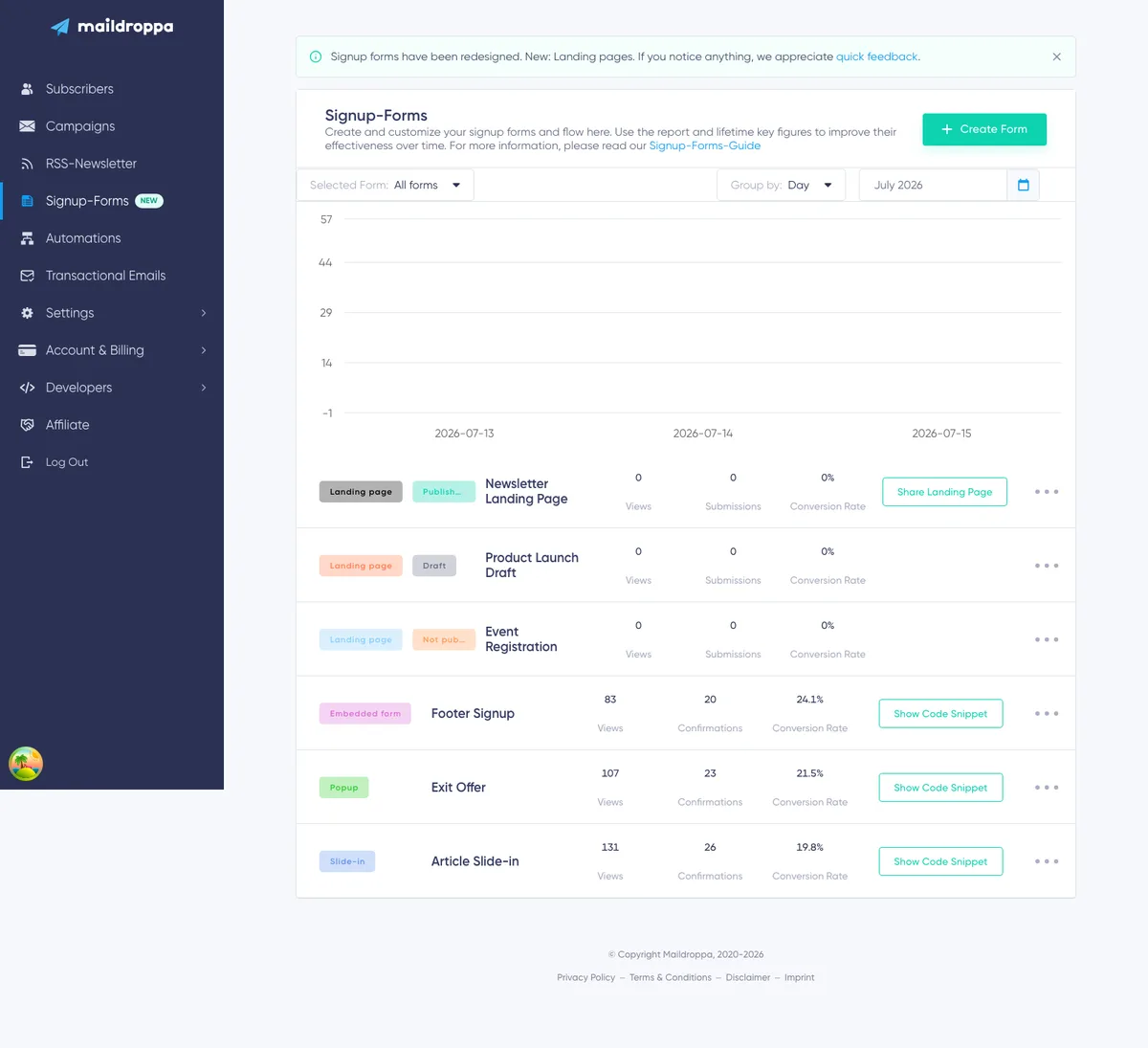
The Signup Forms Overview page is your dashboard for anything related to your signup forms and landing pages.
Here you can create a new form, compare the performance of your existing forms, open the visual builder, preview your work, copy an embed code, publish a landing page, or take a form offline.
The Signup Form Report shows how often your forms and landing pages have been viewed during a selected period. The Signup Form List shows every form in your account together with its current status, performance figures, sharing options, and management actions.
Creating a Signup Form
Click on “Create Form” in the upper-right corner of the overview.
You will be asked what you would like to create. Maildroppa currently offers four signup form types: Landing Page, Embedded Form, Popup, and Slide-in.
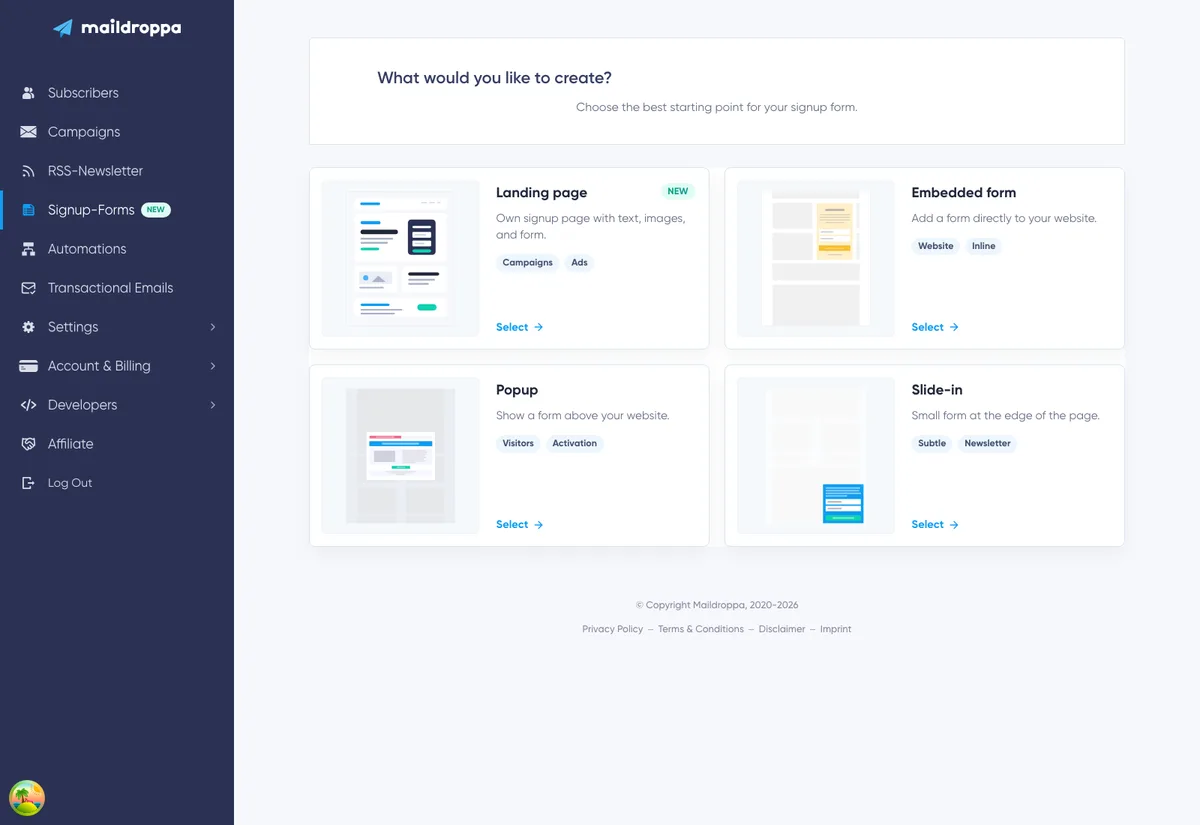
Landing Page — A complete, standalone signup page hosted by Maildroppa. You can combine the signup form with headings, text, images, sections, and other content. Landing pages are useful for advertisements, social media links, lead magnets, events, and any situation where you want to send visitors to a dedicated signup page.
Once the page is ready, you can publish it and share its public link. Depending on your setup, the page can use your Maildroppa landing page address or a connected custom domain.
Embedded Form — A form placed directly inside an existing page on your website. It is a good choice for newsletter sections, blog articles, footers, sidebars, or any other location where the form should remain part of the surrounding page.
Popup — A form that appears above the content of your website and draws the visitor’s attention to the signup offer. You can configure how the popup is displayed and use a specific button or page element to open it manually.
Slide-in — A compact form that appears at the edge of the page. It is more noticeable than a regular embedded form while remaining less intrusive than a centered popup.
All four form types use the visual Signup Form Builder. You can start with a template, customize the design, choose subscriber fields, assign tags, and connect the form to a signup flow.
Signup Form Report
The Signup Form Report shows how often your signup forms and landing pages were viewed during a selected period.
In the upper-left corner, you can choose to see all active forms in one report or select one specific form for a closer look. When all forms are selected, every form is displayed in its own color. The same color appears next to the form in the list below, making it easier to connect the chart data with the correct form.
Inactive forms are not included in the chart.
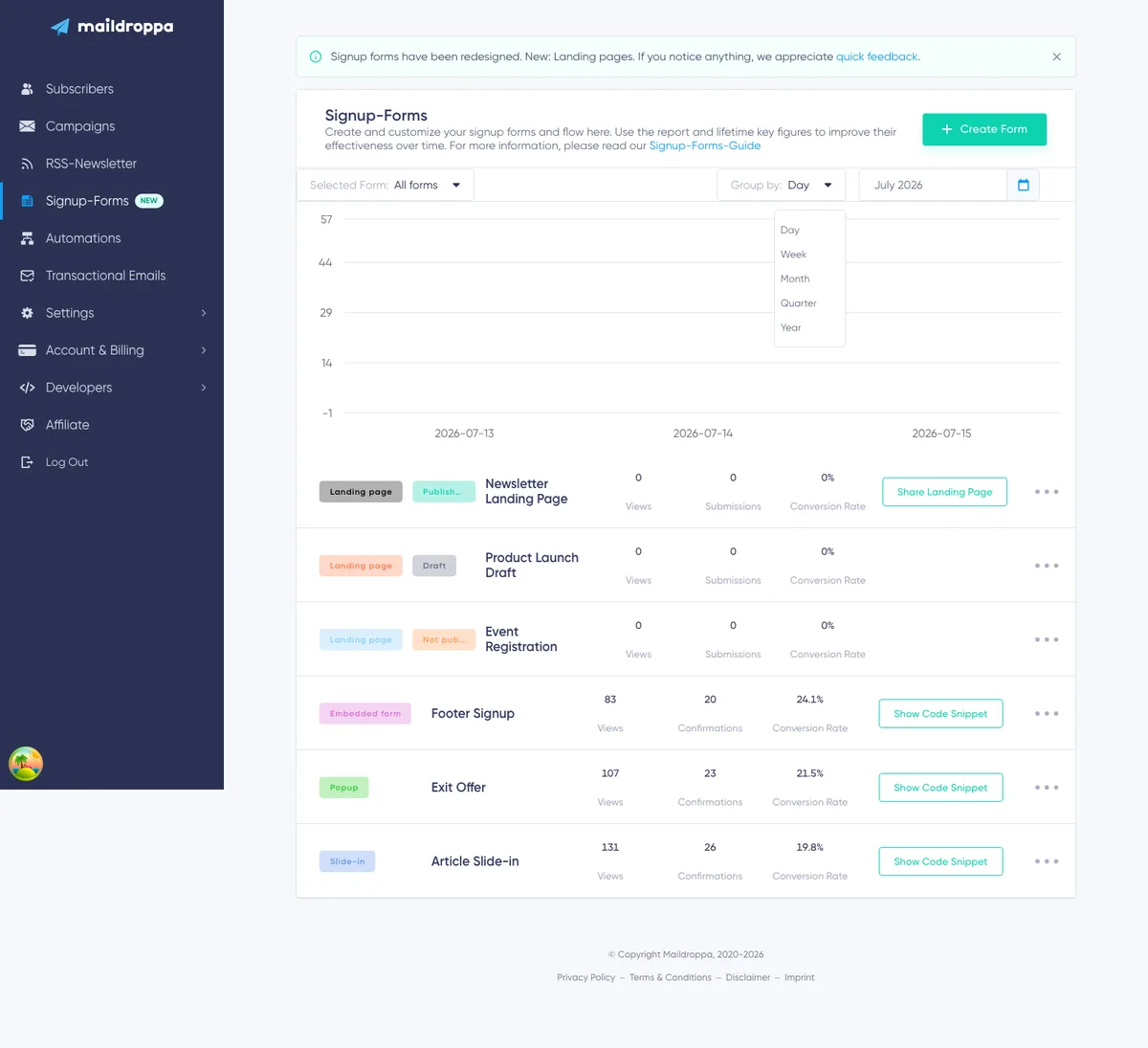
Use the calendar to choose the period you want to analyze. The report and the figures in the form list use this selected reporting period. They are not necessarily lifetime totals.
You can group the report data by day, week, month, quarter, or year. A daily view is helpful when reviewing a recent campaign. Monthly, quarterly, or yearly grouping is more useful when looking for long-term trends.
Remember that the current day, week, or month may still be incomplete. Lower numbers for an unfinished period do not automatically mean that a form is performing worse.
The chart primarily shows views. When you select a single form and move over the chart, the additional information depends on the form type:
- Embedded Forms, Popups, and Slide-ins show views and confirmations.
- Landing Pages show views and submissions.
Signup Form List
Below the report is the Signup Form List. It contains all signup forms and landing pages in your account.
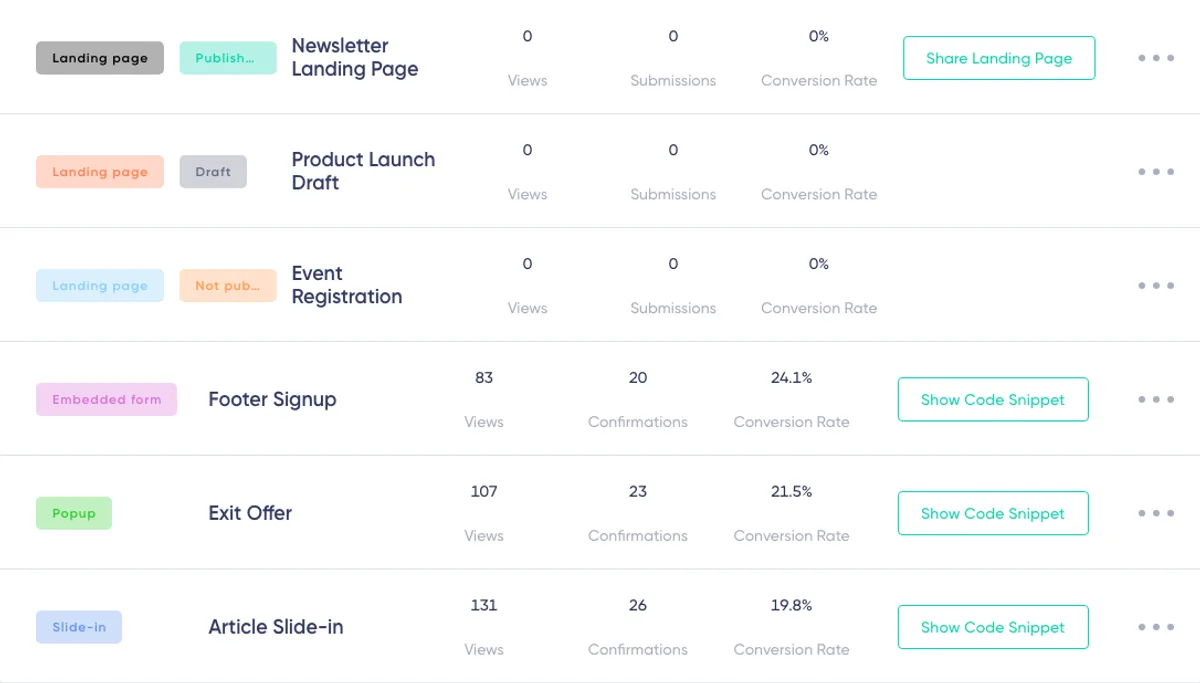
Recently created forms and recently published landing pages appear near the top. Each row contains the form type, name, reporting figures, sharing option, and a three-dot actions menu.
Inactive forms remain visible in the list but appear faded.
Signup Form Types
The label at the beginning of a row shows which type of form you are looking at:
- Landing page
- Embedded form
- Popup
- Slide-in
The designated color represents the form in the report above. For example, if a form’s label is blue, its views are also represented in blue in the chart.
If your account still contains the Maildroppa system default form, it is shown as a separate row. The system default form cannot be edited or deleted, but it can be activated or deactivated.
Landing Page Publication Status
Landing Pages have an additional publication status next to the form type.
Draft — The landing page is saved in your account but has not been published. It is not available through a public link. You can continue editing and previewing the page until it is ready.
Published — The landing page is live and can be opened by visitors. A published page has a public URL and can be shared from the overview.
Not Public — The landing page was unpublished and is no longer publicly available. The page remains in your account, so you can edit and publish it again later.
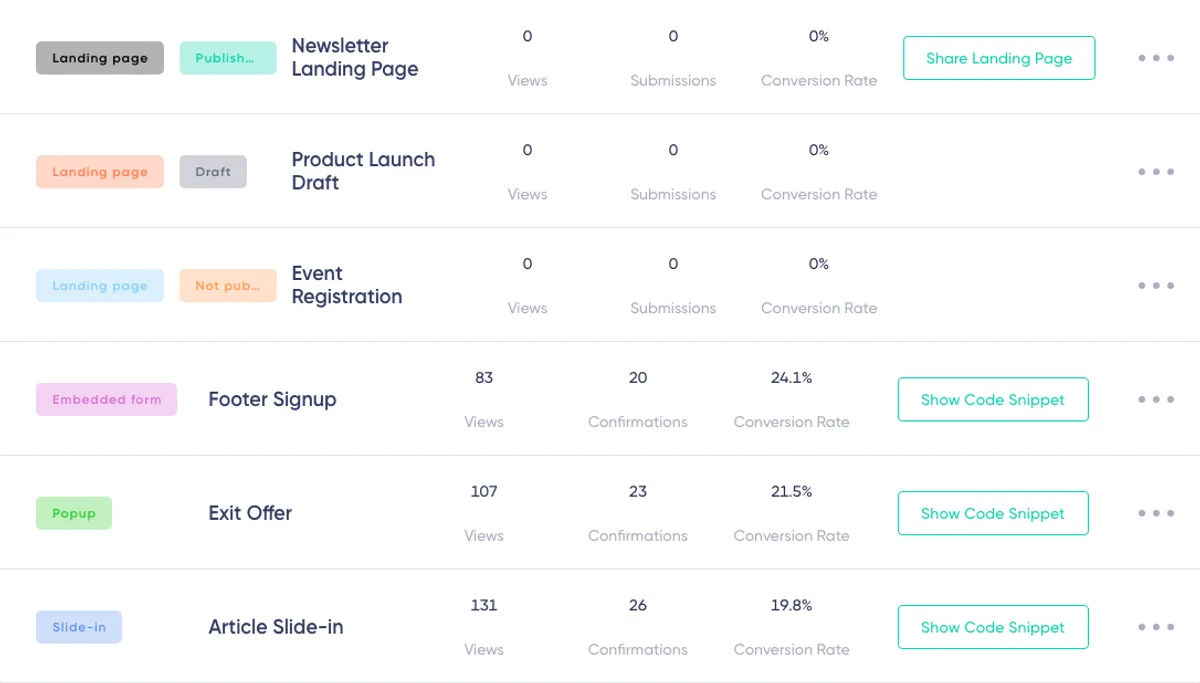
Signup Form Name
The name helps you identify the form inside Maildroppa. It is not automatically shown to your visitors.
Use clear names such as “Homepage Newsletter”, “Summer Campaign Popup”, or “Lead Magnet Landing Page”. This becomes especially helpful once your account contains several forms.
Click the name of a regular form to open it in the Signup Form Builder.
Landing Pages can also be renamed directly from the actions menu. Renaming a Landing Page does not change its existing public URL.
Number of Views
Views show how often the form or landing page was displayed during the selected reporting period.
For an Embedded Form, Popup, or Slide-in, a view is recorded when the public form is loaded. For a Landing Page, a view is recorded when the published page is opened.
Views tell you how much exposure a form received, but they do not show how many visitors completed the signup.
Submissions and Confirmations
Maildroppa distinguishes between submitting a form and completing the Double Opt-in process.
Landing Page rows show the number of Submissions. A submission is recorded when a visitor completes the form and sends their information. At this point, the visitor may still need to confirm their email address.
Embedded Forms, Popups, and Slide-ins show Confirmations. A confirmation is recorded when the subscriber clicks the confirmation link in the Double Opt-in email.
This distinction is important. A visitor may submit the form but never confirm the email address. Only after confirmation does the person become a confirmed subscriber.
Conversion Rate
The Conversion Rate shows the percentage of views that resulted in a confirmed subscription.
For example, if a form receives 100 views and 12 visitors complete the Double Opt-in process, its conversion rate is 12%.
For Landing Pages, the displayed submission count can therefore be higher than the confirmed conversion rate. Some visitors may have submitted the form but not yet clicked the confirmation link.
Use the conversion rate to compare forms with different amounts of traffic. A form with fewer views can still perform very well if a high percentage of its visitors become confirmed subscribers.
Share Landing Page
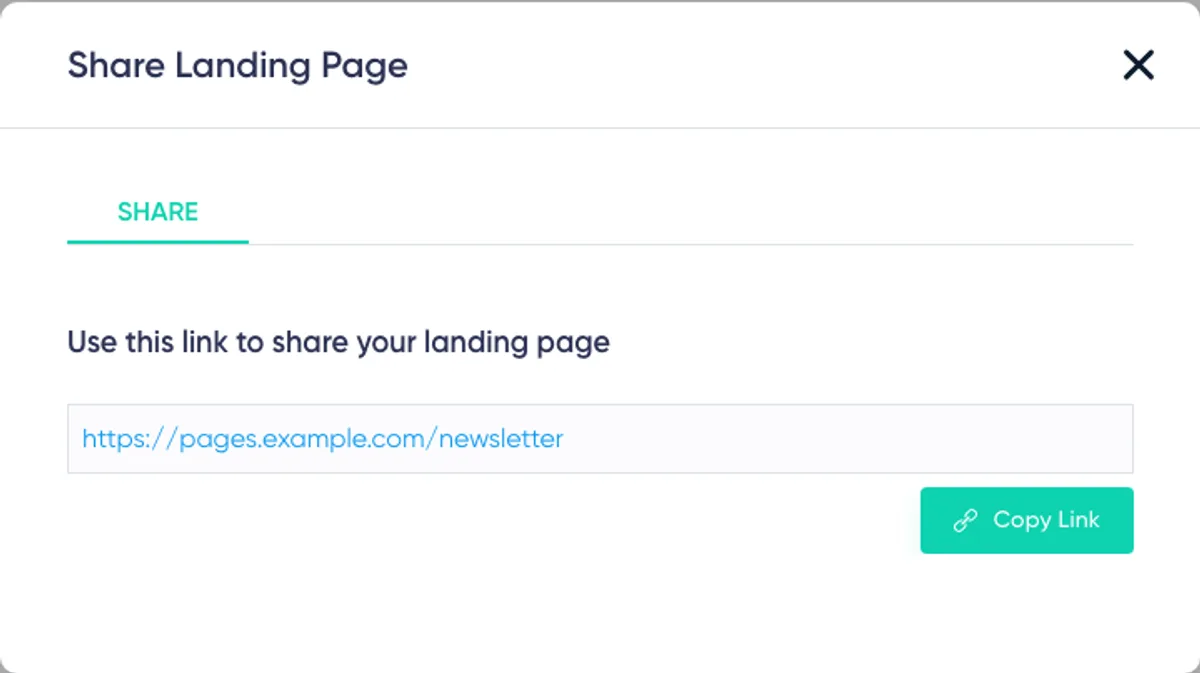
A published Landing Page has a “Share Landing Page” button.
Click it to view and copy the public URL. You can use this link in email campaigns, social media posts, advertisements, QR codes, messenger conversations, or buttons on your website.
The three-dot actions menu also provides “Open live” and “Copy link” options for published pages.
Draft and unpublished pages do not show a public sharing button because they are not currently available to visitors.
Show Code Snippet
Active Embedded Forms, Popups, and Slide-ins have a “Show Code Snippet” button.
Click it to open the embedding dialog. It contains two tabs: JavaScript and HTML.
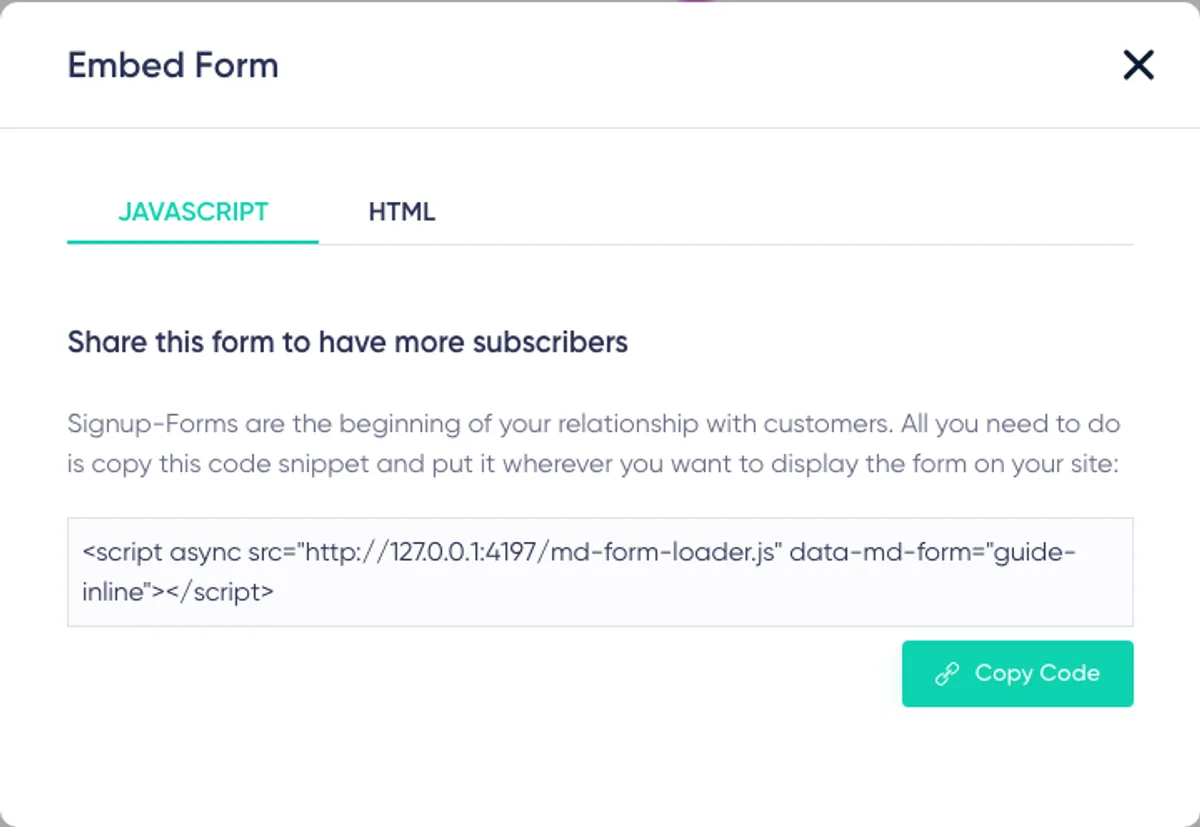
The JavaScript tab contains a short script that loads the form through the Maildroppa form runtime. Copy the complete script and add it to the location where the form should appear on your website. The form type and settings determine whether it is displayed inline, as a popup, or as a slide-in.
The HTML tab provides the generated form markup. This option is useful if you want to work directly with the HTML or make manual adjustments for a custom implementation.
For Popup forms, Maildroppa can also provide an element ID such as:
maildroppa-popup-btn-[form-id]
Add this ID to the button or element that should open the popup. When a visitor clicks that element, the corresponding Maildroppa popup is displayed.
Form-Config (3 dots)
On the right side of each row, there is a three-dot actions menu. The exact actions depend on the form type and its current status.
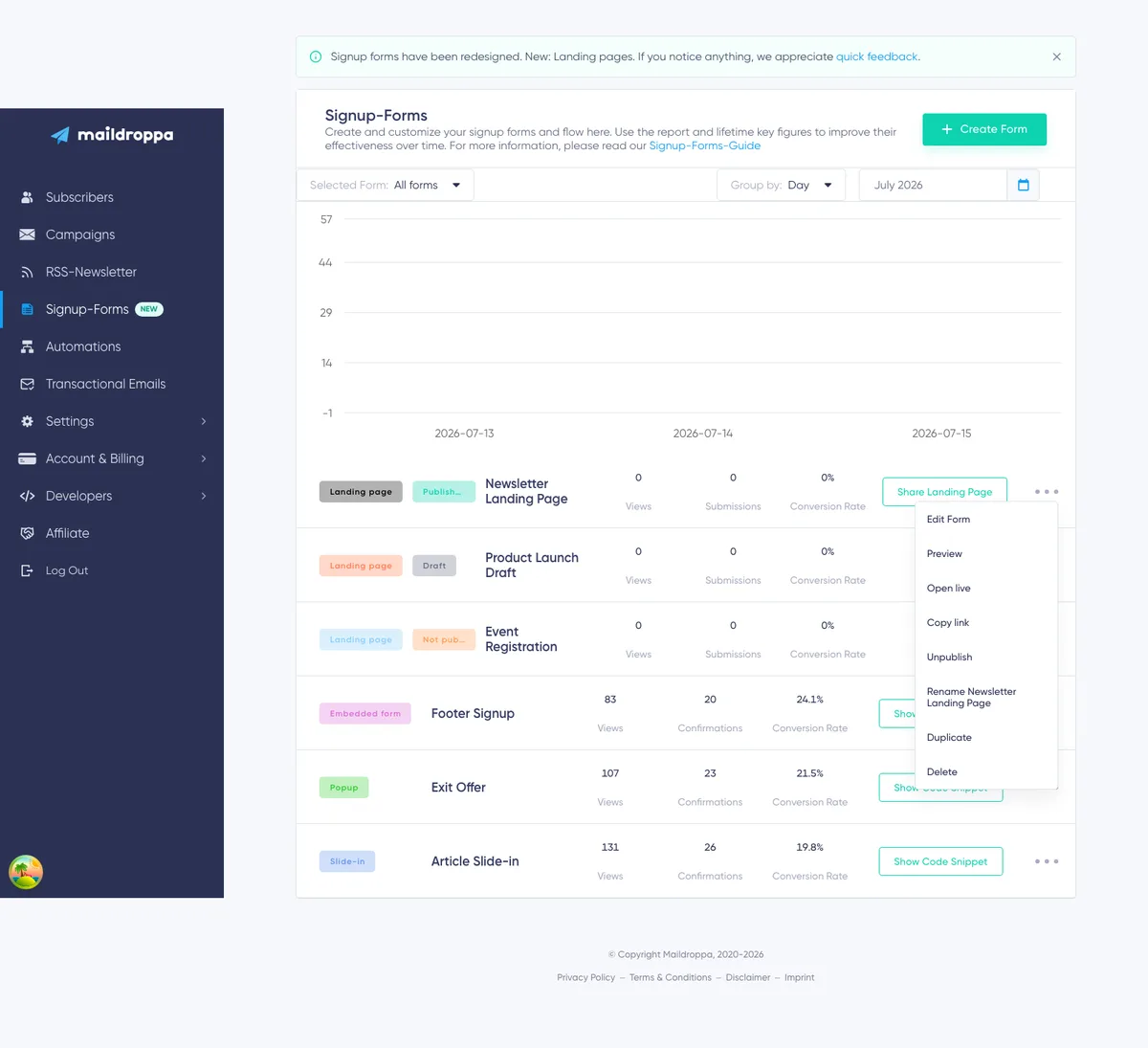
Edit Form opens the form in the visual Signup Form Builder.
Preview shows how the saved form or landing page will look and behave without publishing it or adding it to a website.
Published Landing Pages can also offer Open live, Copy link, and Unpublish.
Rename changes the internal name of a Landing Page without changing its public URL.
Duplicate creates a new draft copy of a Landing Page and opens it in the builder. The copy does not reuse the original publication or public URL. This allows you to create a new campaign page without changing the live original.
Activate or Deactivate controls whether an Embedded Form, Popup, Slide-in, or system default form is publicly available.
An inactive form remains in the overview so that you can still see and compare its previous results. However, it is removed from the active report chart and its embed code cannot be shared until it is activated again.
Delete permanently removes a regular form after confirmation.
If you only want to take a form offline temporarily, use “Deactivate” for an embedded form or “Unpublish” for a Landing Page instead.
Managing the Signup Flow
The signup flow is connected directly to each form. There is no separate “Forms Settings” button on the overview.
Inside the Signup Form Builder, you can select, create, or edit the signup flow used by the form. The flow controls three important parts of the subscriber journey:
- What happens immediately after the form is submitted
- Which Double Opt-in email is sent
- What happens after the subscriber confirms the email address
A signup flow can be shared by several forms, or you can create a separate flow for one specific form.
When you are ready to create or redesign a form, click “Create Form” or open an existing form and continue with the Signup Form Builder guide.
Ready to Send Better Emails?
Stop juggling bloated tools or overpriced plans. Maildroppa offers personal support, privacy-conscious controls, and powerful email marketing - starting free forever.
No credit card required. No time limit.