Contents
the email tool that makes email marketing simple


Set the Subscriber Language
Published: · Last updated: · By Marcus Biel
In brief
Learn how to choose the language for Maildroppa's subscriber-facing footer links, use the English default, and understand what is not translated.
The Subscriber Language page controls the language Maildroppa uses for centrally generated, subscriber-facing text in your account.
At present, this setting is used for the two standard links in supported email footers:
- “Manage Subscriber Profile”
- “Unsubscribe from emails”
Choose one language for the account and Maildroppa uses the corresponding labels when it generates these footer links for future emails. This keeps important subscriber actions understandable without requiring you to rewrite them in every campaign, template, or Automation email.
Subscriber Language is separate from the language of the Maildroppa application and from content you write yourself. It does not automatically translate an email subject, email body, Signup Form, Signup Flow, or other custom text.
What Subscriber Language Controls
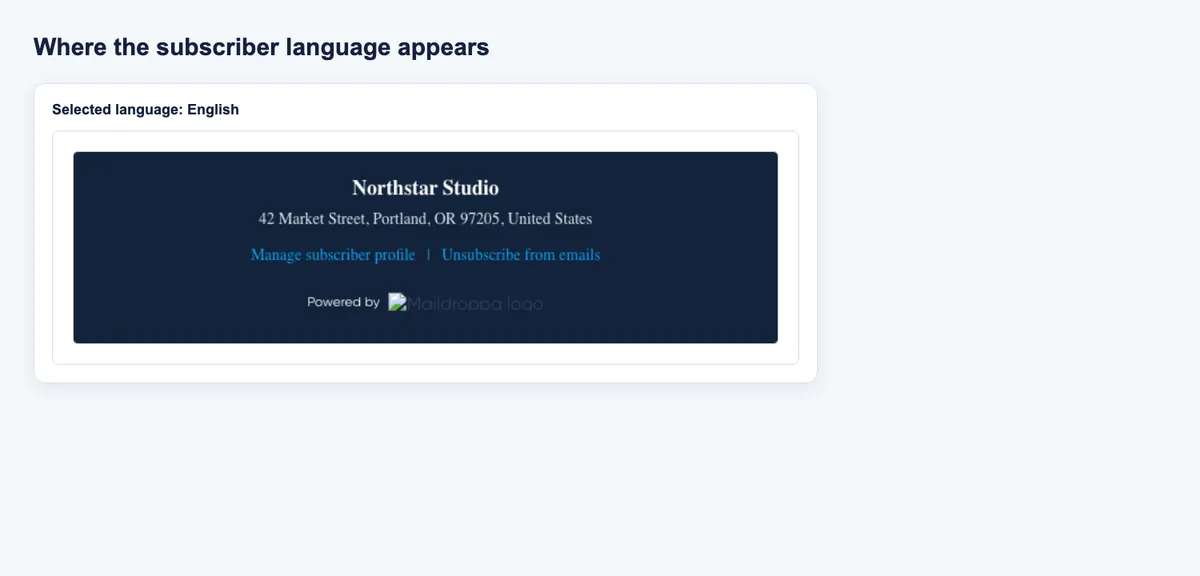
Maildroppa adds a standard footer to supported outgoing emails. Depending on the email type, this footer can contain your company name, postal address, subscriber actions, and Maildroppa branding.
Subscriber Language controls the wording of these two footer actions:
Manage Subscriber Profile
This link opens the subscriber's personal profile destination. The subscriber can use the available profile functions without needing access to your Maildroppa account.
Changing Subscriber Language changes the visible link label. It does not change the subscriber-specific destination or the actions available there.
Unsubscribe from Emails
This link starts the subscriber's unsubscribe process.
Changing Subscriber Language changes the visible link label. It does not remove the link, change the subscriber identity contained in its destination, or change your saved unsubscribe preferences.
The labels are generated centrally so their meaning remains consistent across emails. They cannot be rewritten on the Subscriber Language page.
Opening the Subscriber Language Page
Open “Settings” and select “Subscriber Language” in the Setup section.
You can also open the page directly at:
https://app.maildroppa.com/settings/subscriber-language
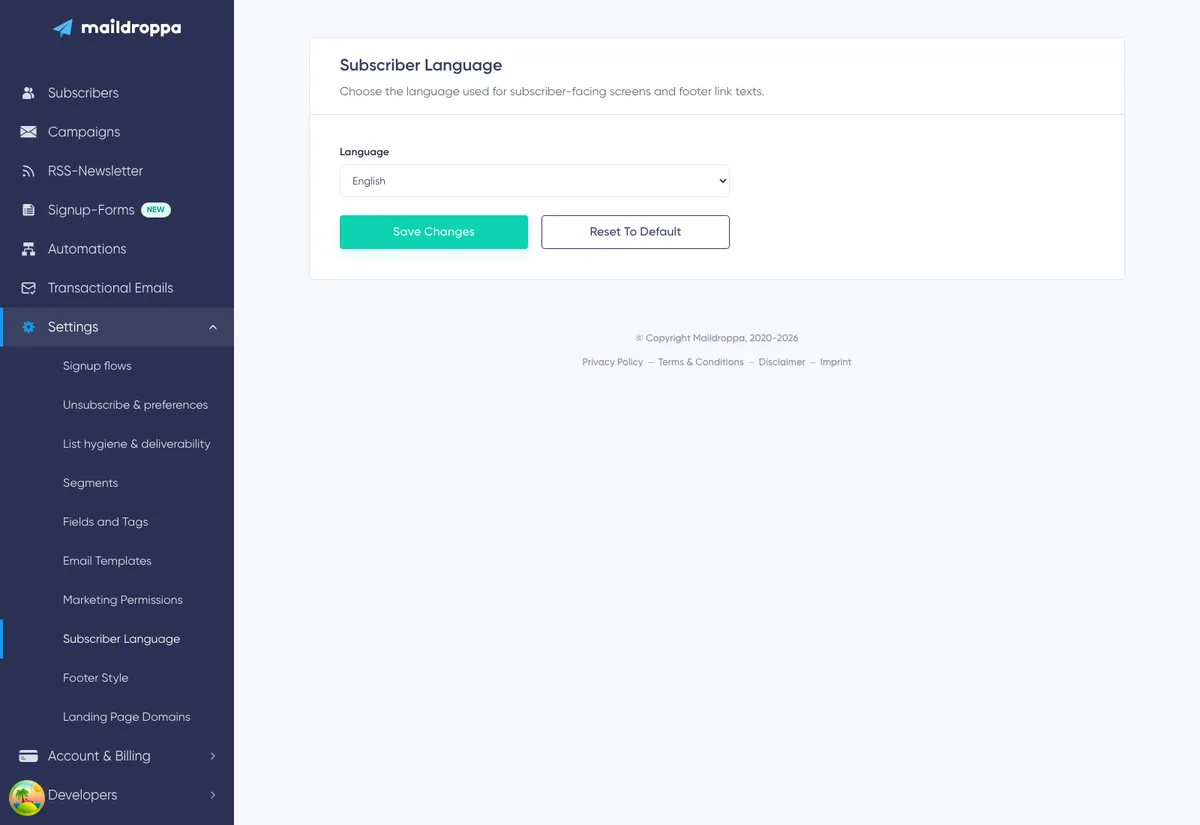
The page contains:
- A short explanation of the setting.
- One “Language” dropdown.
- A “Save Changes” button.
- A “Reset to Default” button.
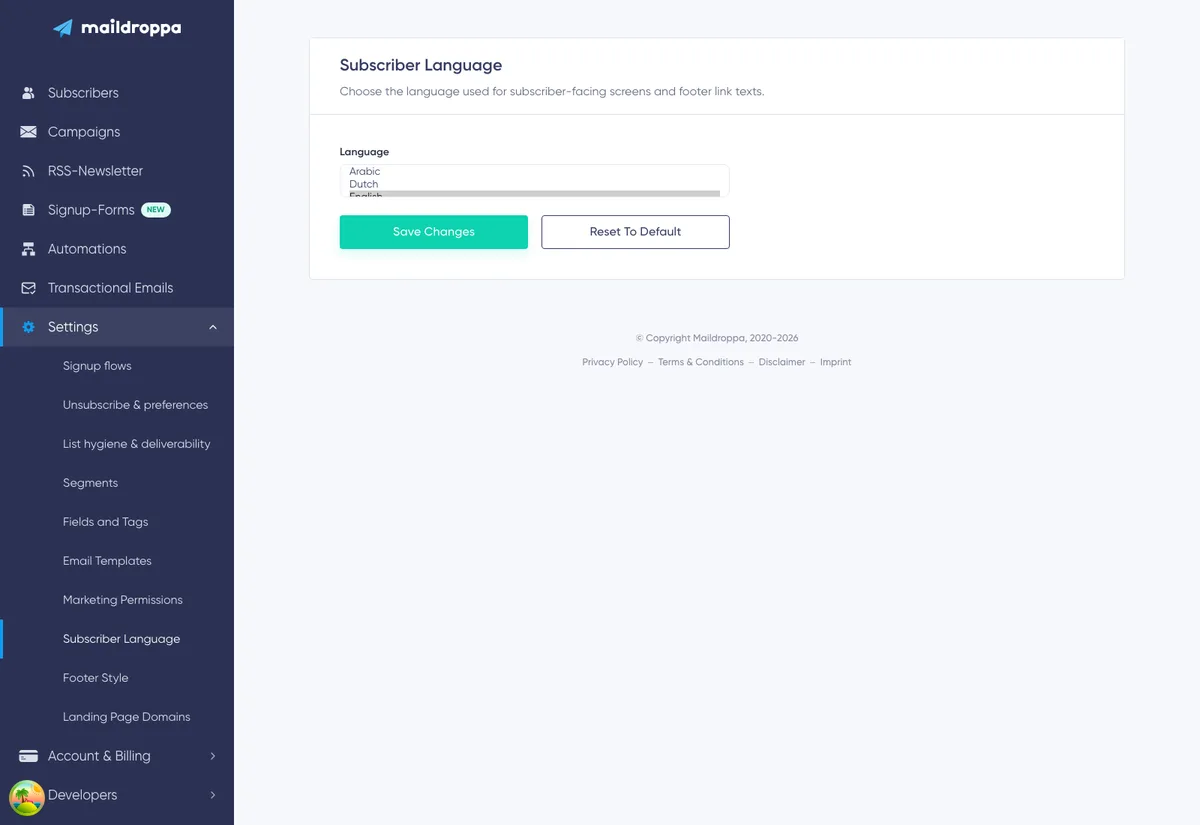
The current account language is selected when the page finishes loading. Language names in the dropdown are displayed in English and ordered alphabetically by their English names.
Subscriber Language and Application Language Are Different
Maildroppa has two separate language concepts.
Application Language
Your application language controls the Maildroppa interface you see after signing in, including navigation, buttons, field labels, and settings pages.
It is a user-profile preference. Change it under “Settings” → “User Profile”.
Subscriber Language
Subscriber Language controls centrally translated text intended for the people receiving your emails. It is an account setting, not an interface preference.
Changing Subscriber Language does not change the language of the Maildroppa application. Changing your application language does not automatically change Subscriber Language.
For example, you can use Maildroppa in German while selecting Spanish for subscriber footer links.
Choosing a Language
Use the “Language” dropdown to choose the language most appropriate for the subscribers receiving email from this account.
Selecting an option changes the pending choice on the page, but it does not save it automatically.
Click “Save Changes” to store the selection. While Maildroppa is loading or saving the setting, the dropdown and action buttons are temporarily unavailable.
After saving, Maildroppa reloads the stored preference and the available-language list. The selected language remains visible in the dropdown.
If you leave the page without clicking “Save Changes”, the new selection is not stored.
Available Languages
The current Subscriber Language selector contains 29 languages:
- Arabic
- Bengali
- Bulgarian
- Chinese (Mandarin)
- Danish
- Dutch
- English
- Finnish
- French
- German
- Greek
- Hebrew
- Hindi
- Hungarian
- Indonesian
- Italian
- Japanese
- Korean
- Norwegian
- Polish
- Portuguese
- Romanian
- Slovak
- Spanish
- Swedish
- Thai
- Turkish
- Ukrainian
- Vietnamese
The selector uses general language choices rather than regional variants. For example, it offers Portuguese rather than separate Brazilian and European Portuguese options.
Choose the language your audience is most likely to understand. The selection is not based on the language of the browser, country, email address, or individual subscriber record.
Translation Examples
The following examples show how the two centrally generated labels change:
| Language | Manage-profile label | Unsubscribe label |
|---|---|---|
| English | Manage Subscriber Profile | Unsubscribe from emails |
| German | Abonnentenprofil verwalten | E-Mails abbestellen |
| Spanish | Gestionar el perfil del suscriptor | Darse de baja |
| French | Gérer votre profil | Se désabonner |
Other available languages use their corresponding centrally maintained translations.
The wording is not editable per account. If you want to change colors, fonts, sizes, or the footer background without changing the wording, use Footer Style.
Where the Selected Language Appears
Maildroppa uses the selected labels whenever it generates a standard email footer that includes subscriber action links.
This includes supported sends such as:
- Email campaigns and campaign test emails.
- Automation emails and Email Messages.
- Welcome emails that include the standard subscriber links.
- Re-engagement emails used by List Hygiene & Deliverability.
The exact footer content depends on the email type and the recipient state.
For example, a Double Opt-in confirmation email does not show profile and unsubscribe links before the subscription has been confirmed. Changing Subscriber Language therefore does not add those links to that message.
The Footer Is Generated Centrally
Maildroppa stores an insertion point in supported email content and generates the protected footer using the current account settings when the email is prepared.
The generated footer combines information from several places:
- Company name and postal address from your provider details.
- Link wording from Subscriber Language.
- Colors, fonts, sizes, and background from Footer Style.
- Plan-dependent Maildroppa branding.
Changing Subscriber Language does not replace these other settings.
Future Sends Use the Current Selection
After you save a different Subscriber Language, future generated footers use the new link labels. This also applies when an existing draft or scheduled campaign is prepared later for sending.
An email that has already been delivered cannot be changed. Its footer remains part of the message stored by the recipient's email provider.
If an email or Footer Style preview was already open when you changed the language, close and reopen it or reload the page so it fetches the current footer labels.
What Subscriber Language Does Not Translate
Subscriber Language is not an automatic translation service for all account content.
It does not translate:
- Campaign subjects, preheaders, or message bodies.
- Automation email content or Email Message content.
- Template text.
- Signup Form fields, buttons, validation messages, or success content you configured in the builder.
- Signup Flow page headings, messages, buttons, redirects, or Double Opt-in email content.
- Re-engagement email content that you wrote yourself.
- Custom fields, field options, tags, or segment names.
- Your company name or postal address.
- The Maildroppa application interface.
At present, the stored account preference is used for the centrally generated footer link labels. Do not assume that selecting a language rewrites every heading or message on profile, signup, confirmation, or unsubscribe pages.
Configure those areas where their content is managed:
- Use Signup Forms for form content and form design.
- Use Signup Flows for after-submit pages, confirmation pages, Double Opt-in email content, and welcome email content.
- Use Unsubscribe Preferences for the unsubscribe experience and optional feedback settings.
- Use List Hygiene & Deliverability for re-engagement email and confirmation content.
One Language per Account
Subscriber Language is an account-wide preference. Maildroppa does not choose a different footer language for each subscriber.
This means:
- Every integration and sender using the same Maildroppa account shares the selection.
- All future footers with subscriber links use the same two translated labels.
- Importing a subscriber does not change the account language.
- A subscriber's country or custom language field does not override the setting.
If you communicate with audiences in several languages, selecting one Subscriber Language does not create multilingual campaigns automatically.
Use separate campaign content and audience segments for each language. Review the resulting footer wording as part of that workflow. If separate footer languages are mandatory for different audiences, account-level Subscriber Language alone does not provide per-recipient localization.
Resetting to the Default
Click “Reset to Default” to remove the account's saved Subscriber Language preference.
Maildroppa resets immediately without opening a confirmation dialog. It then reloads the setting and shows the default language in the dropdown.
The default Subscriber Language is English.
After a reset, future footers use:
- “Manage Subscriber Profile”
- “Unsubscribe from emails”
Selecting English and clicking “Save Changes” produces the same visible labels. The difference is that “Reset to Default” removes the explicit preference and lets Maildroppa use its default.
If Maildroppa cannot resolve a stored locale to a supported translation, it also falls back to the English footer labels.
Designing Footers for Translated Labels
Translated text can be shorter or much longer than English. Review the footer after changing the language, especially when you use a large link font or a narrow mobile layout.
Check that:
- Both labels remain readable on desktop and mobile.
- Longer labels can wrap without overlapping the separator or address.
- Link colors have enough contrast against the footer background.
- The font supports the selected writing system.
- Arabic, Hebrew, Chinese, Japanese, Korean, Hindi, Bengali, and Thai glyphs render correctly.
Selecting Arabic or Hebrew changes the wording, but it does not redesign the whole email for right-to-left reading. If the email body uses a right-to-left language, configure its content, alignment, and direction appropriately in the email editor and test the result in relevant inboxes.
Use the Footer Style preview for a first visual check, then send a real test email. Inbox rendering can differ from the browser preview.
Recommended Workflow
Use this sequence when setting up an account for a particular subscriber audience:
- Decide which language the majority of recipients should see for profile and unsubscribe actions.
- Open “Settings” → “Subscriber Language”.
- Select the language and click “Save Changes”.
- Open Footer Style again and review the translated labels with the saved design.
- Open the relevant campaign, Automation email, welcome email, or re-engagement email.
- Make sure the custom subject and content use the intended language as well.
- Send a test email to a real inbox.
- Check the footer on desktop and mobile.
- Confirm that both links are understandable and open the expected subscriber destinations.
Changing the setting shortly before a scheduled send can affect the footer language used when that send is prepared. Coordinate account-wide language changes with everyone who creates or schedules emails.
Troubleshooting
The Maildroppa Interface Did Not Change Language
Subscriber Language does not control the application interface.
Open “Settings” → “User Profile” and change the profile language there.
The Email Body Is Still in the Old Language
Only centrally generated subscriber text is translated. Edit the email subject, preheader, and body yourself or use a template written in the intended language.
The Footer Preview Still Shows the Previous Labels
Save the Subscriber Language first. Then reload Footer Style or close and reopen the email editor so it fetches the current footer settings.
A Previously Sent Email Still Shows the Previous Language
Changing an account setting cannot modify a message that has already been delivered. Check a newly generated test email instead.
A Double Opt-in Email Has No Profile or Unsubscribe Labels
This is expected. The Double Opt-in confirmation email is sent before the person has completed the subscription, so its standard footer does not include the profile and unsubscribe links.
The language of the Double Opt-in subject and content is configured in the assigned Signup Flow.
The Dropdown Uses English Language Names
This is expected. The available languages are listed by their English names, regardless of your Maildroppa interface language.
Reset to Default Selected English
English is the default Subscriber Language. Reset removes the saved preference and reloads English.
Different Subscribers Need Different Languages
The current preference is account-wide and does not use individual subscriber language data.
Create language-specific campaign content and recipient segments. Before sending, remember that the standard footer labels still follow the one Subscriber Language currently selected for the account.
The Buttons or Dropdown Are Temporarily Disabled
The page disables its controls while it loads, saves, or resets the preference. Wait for the request to finish before trying again.
Subscriber Language provides one central, consistent choice for important footer actions. Select the language your audience understands, save it before sending, and continue to manage all custom subscriber content in the relevant form, flow, email, and unsubscribe settings.
Ready to Send Better Emails?
Stop juggling bloated tools or overpriced plans. Maildroppa offers personal support, privacy-conscious controls, and powerful email marketing - starting free forever.
No credit card required. No time limit.